Name Puzzle Designer
About
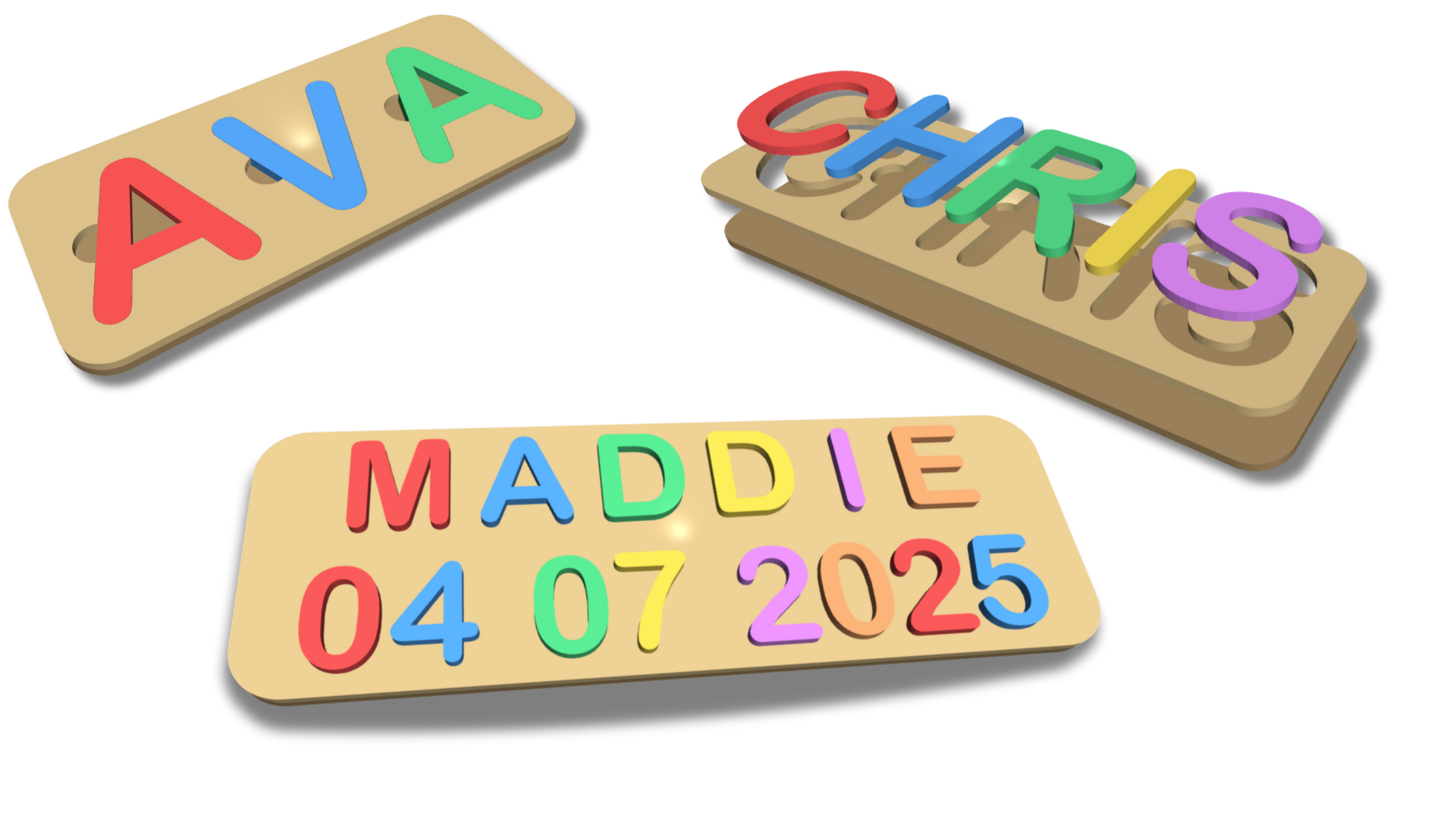
Name Puzzle Designer is an indirect 3D modeling tool tailored specifically for laser cutters, 3D printers, and CNC machines. Customization is facilitated through an intuitive menu with customizable parameters.
Simply the fastest low fuss method for creating name puzzles.
Features:
- Used within any modern web browser (Chrome, Edge, Firefox, Safari)
- IN and MM unit versions available.
- 1 and 2 layer board design
- Custom board thickness
- Multi-line support
- Letters A-Z
- Numbers 0-9
- Independent letter size, thickness, and spacing
- Optional finger notches and inner letter cut-out control making this tool flexible for laser cutters, CNC, or 3D printers
- Adjustable Corner Radius and Pocket Depth parameters
- Final board width and height dimensions are provided through the browser developer tools console
- 2D (SVG/DXF) or 3D (STL/OBJ) export
Designs can be exported as SVG (2D) or STL (3D) files. SVG can be used with laser cutters and CNCs. STL models can be imported into 3D slicer application to be used with 3D printers
The Name Puzzle Designer script operates within the powerful JSCAD environment—an open-source project that enables parametric 3D modeling through code. Check it out here: JSCAD.
Menu Parameters
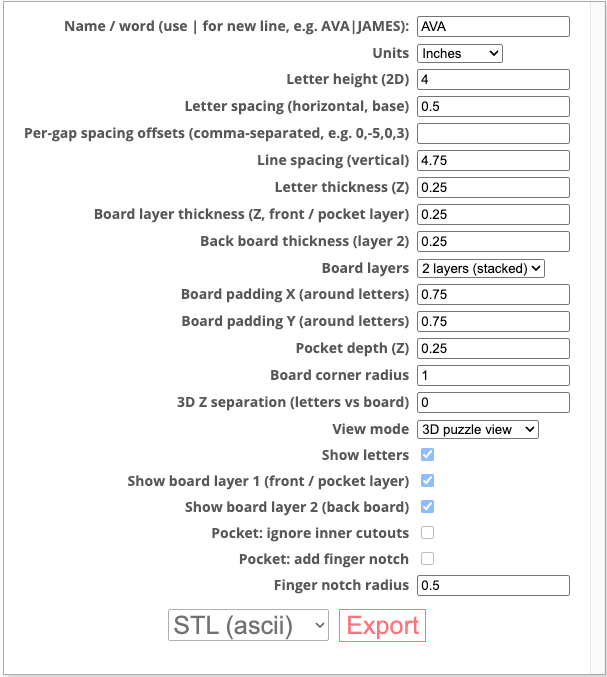
Name / word (use | for new line, e.g. AVA|JAMES)
Enter a name. All characters will be converted to UPPERCASE. Add a pipe character ‘|’ to start a new line separation.
NOTE: Letters are colored only to provide better distinction between individual letters in the 3D view.
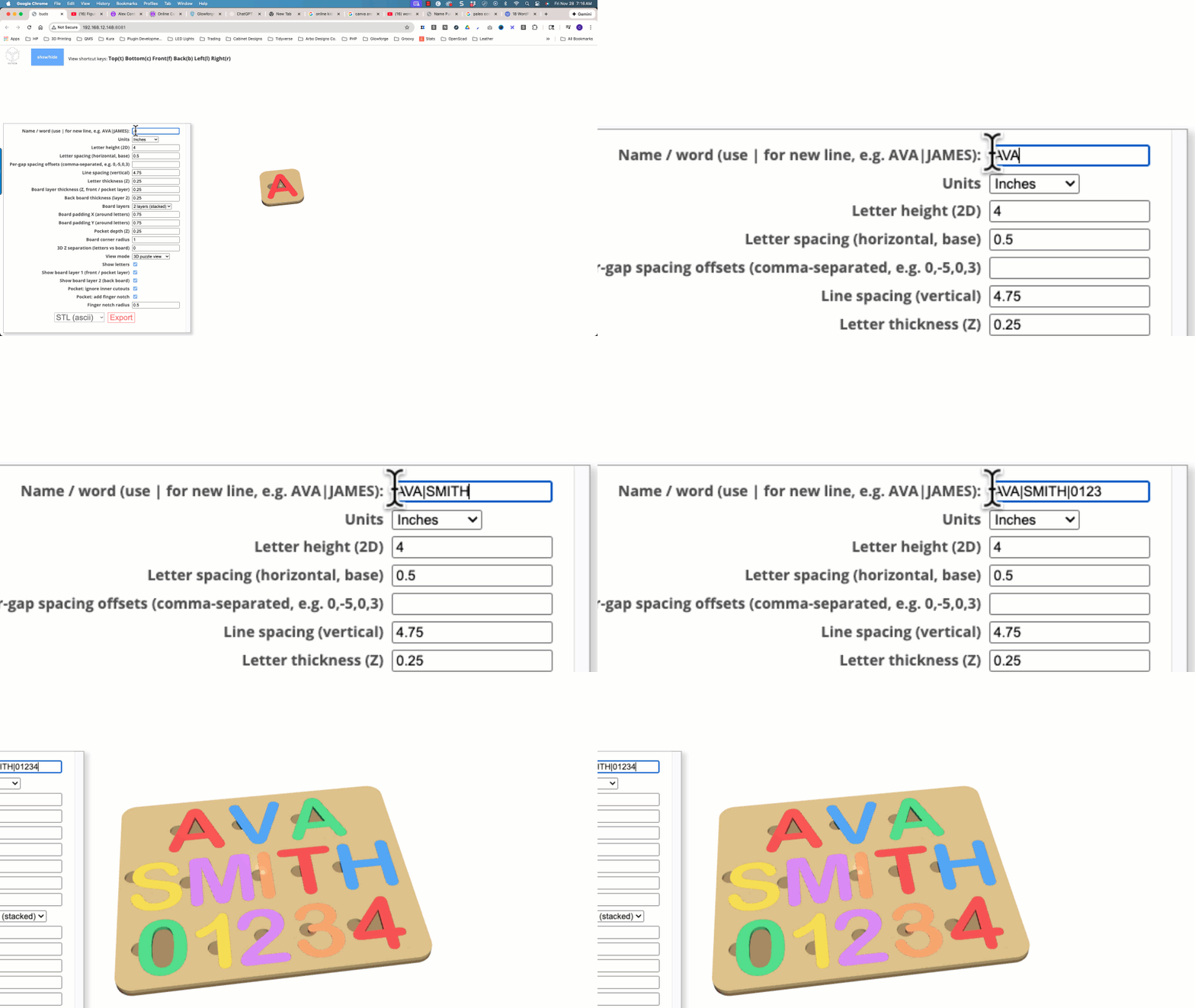
Units
units of measure are in either in inches or mm millimeters.
While you can switch between inches and millimeters during design, the generator doesn’t automatically convert the input values to the new unit, so adjustments must be made manually. Cutgen offers separate design generator options for both ‘IN’ and ‘MM’ measurements, each with pre-set default values. For an optimal experience, we recommend choosing a single measurement unit and avoiding switching between them.
Letter height (2D)
The height of the letters. Values are in UNITS scale (Inches or Millimeters). This parameter will be the main parameter for the overall board dimensions.
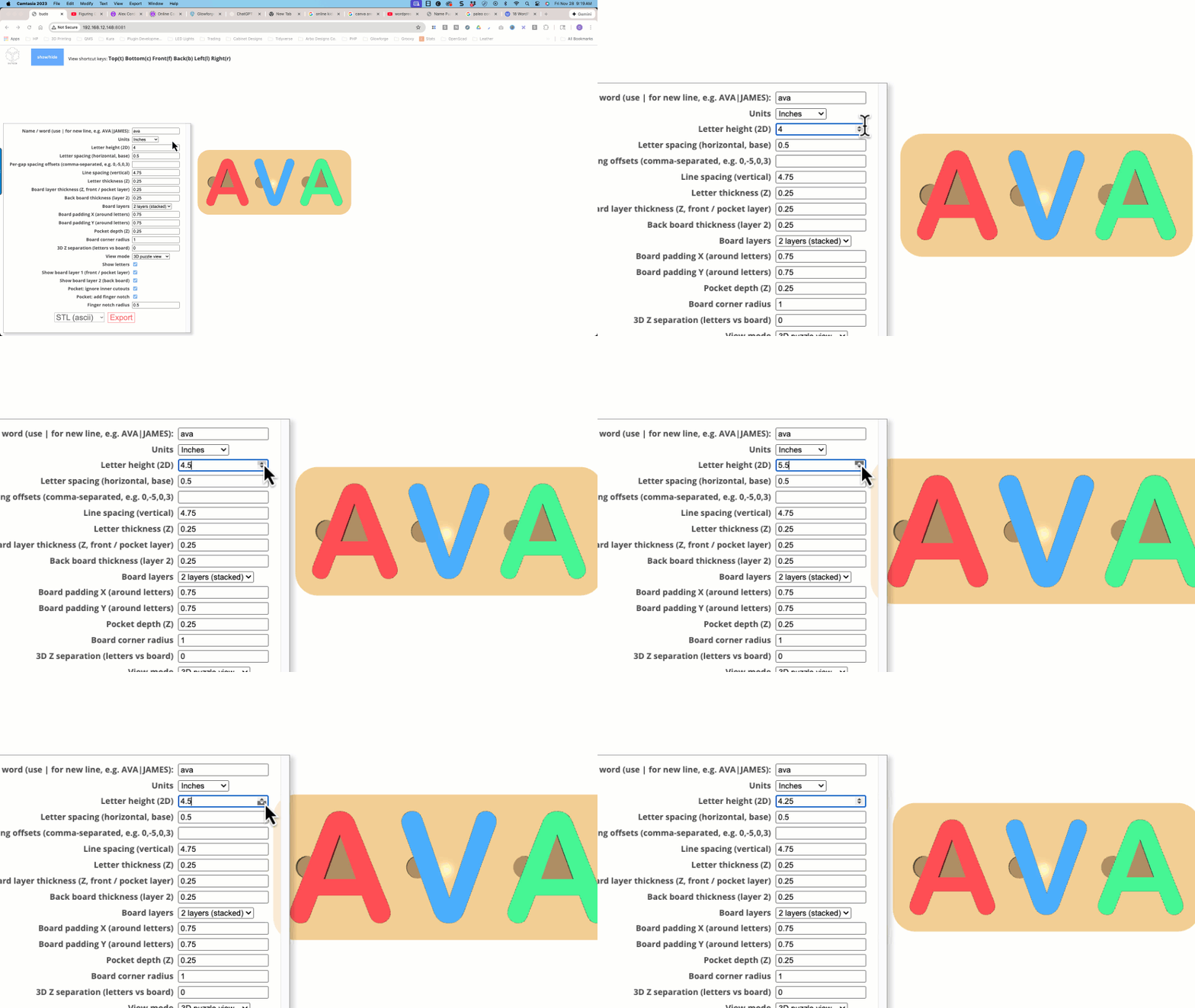
Letter spacing (horizontal, base)
Apply a global ‘between’ letter spacing.

Per-gap spacing offsets (comma-separated, e.g. 0,-5,0,3)
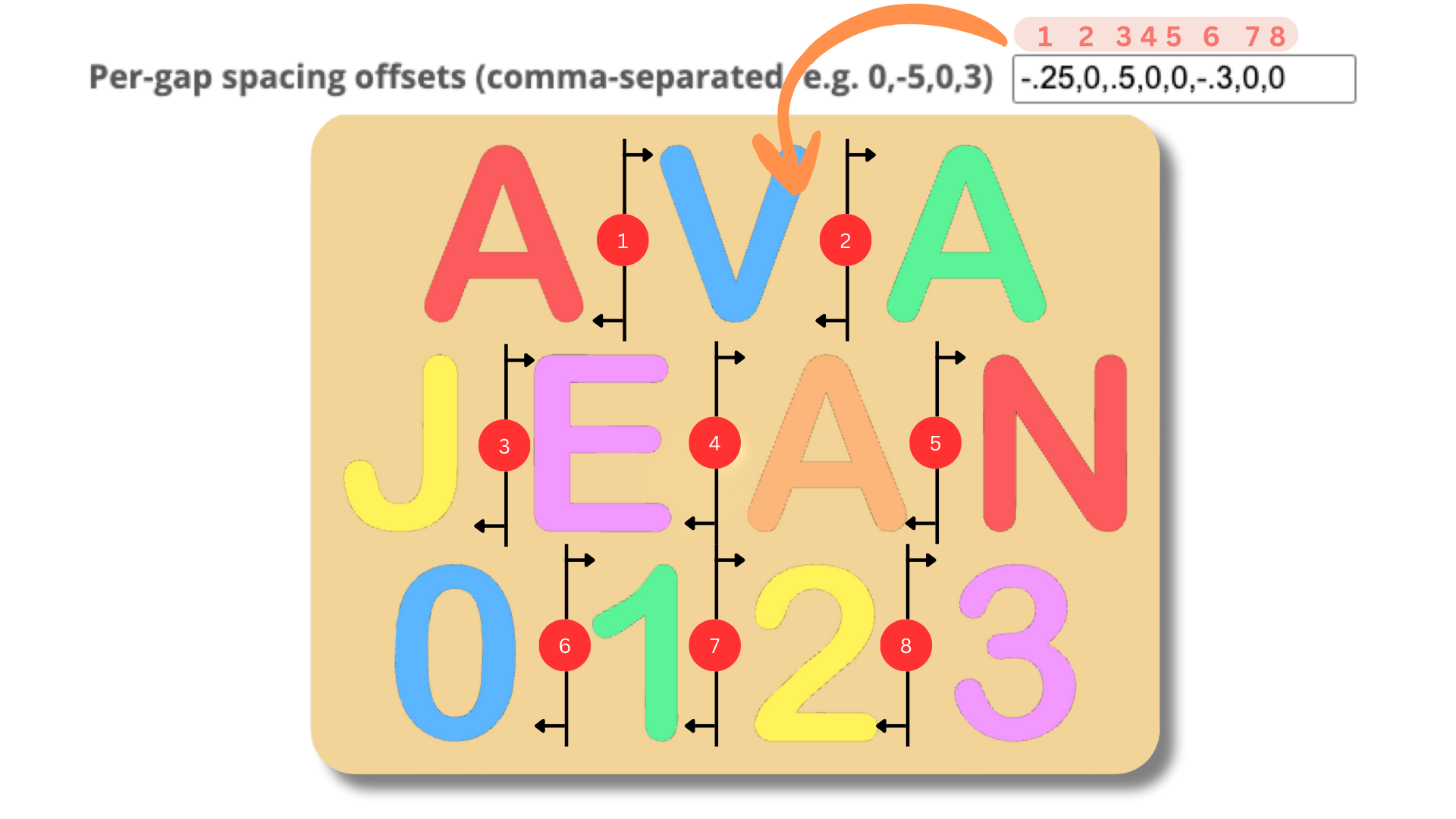
Fine level control of individual spacing between letters is provided. See the diagram below to understand letter spacing number/index. Separation distances are in either Millimeters or Inches (depending on UNITS) and are separated by a comma (,).
For example, if I want to add a 1 inch gap (make larger) to the already existing gap between the letters 2 and 3 in the diagram below, the string I enter would be: 0,0,0,0,0,0,0,1
If you want a -.5 inch (make smaller) between the J and E letters in the diagram below, you would enter the string: 0,0,-.5
REMEMBER: he gap adjustment numbers must correspond to the selected units (MM or IN). Also, positive numbers (+), makes the gap larger, and negative numbers (-), makes the gap smaller.
Line spacing (vertical)
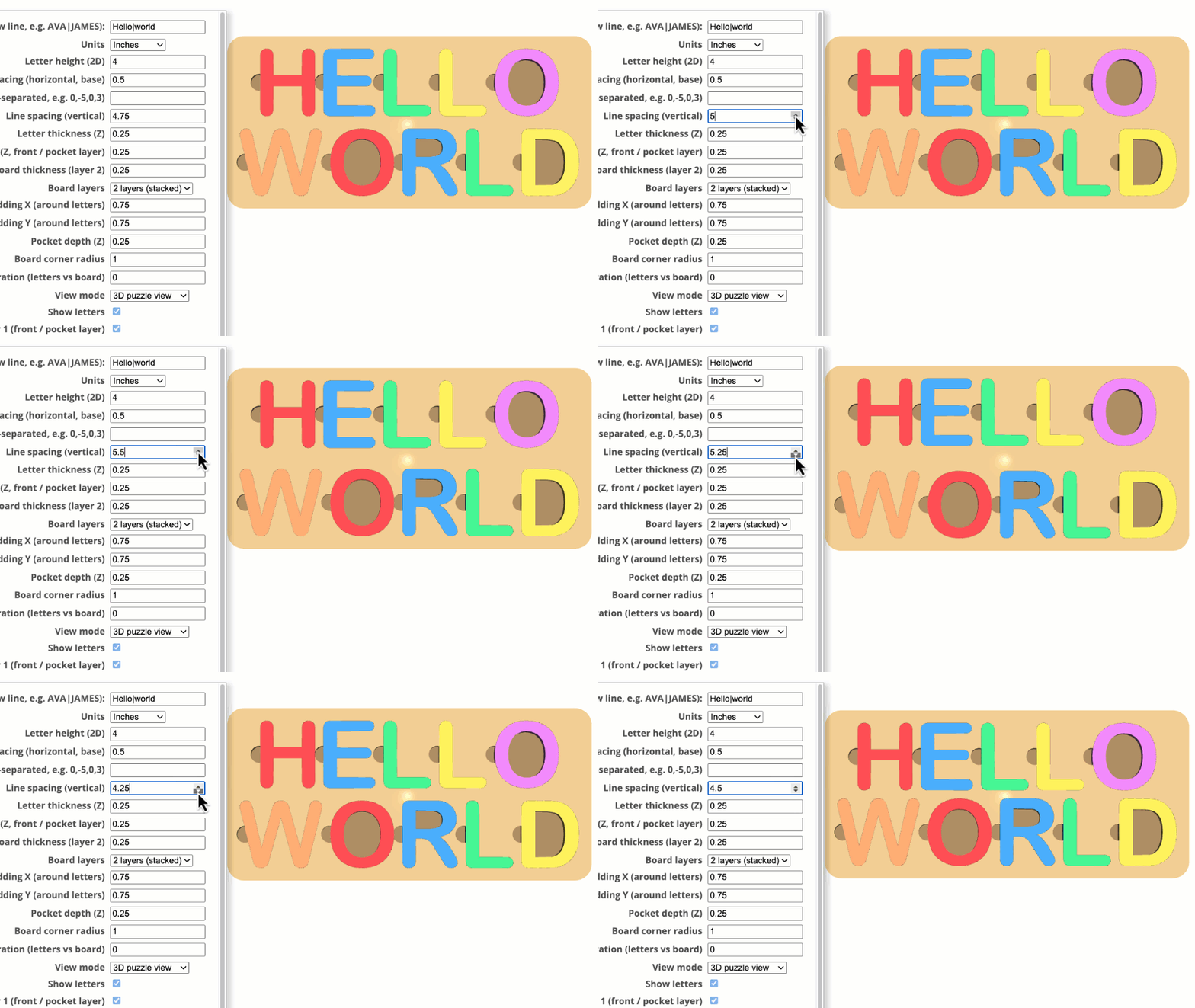
The vertical gap between individual lines. Only applicable to multi-line configurations.
Letter thickness (Z)
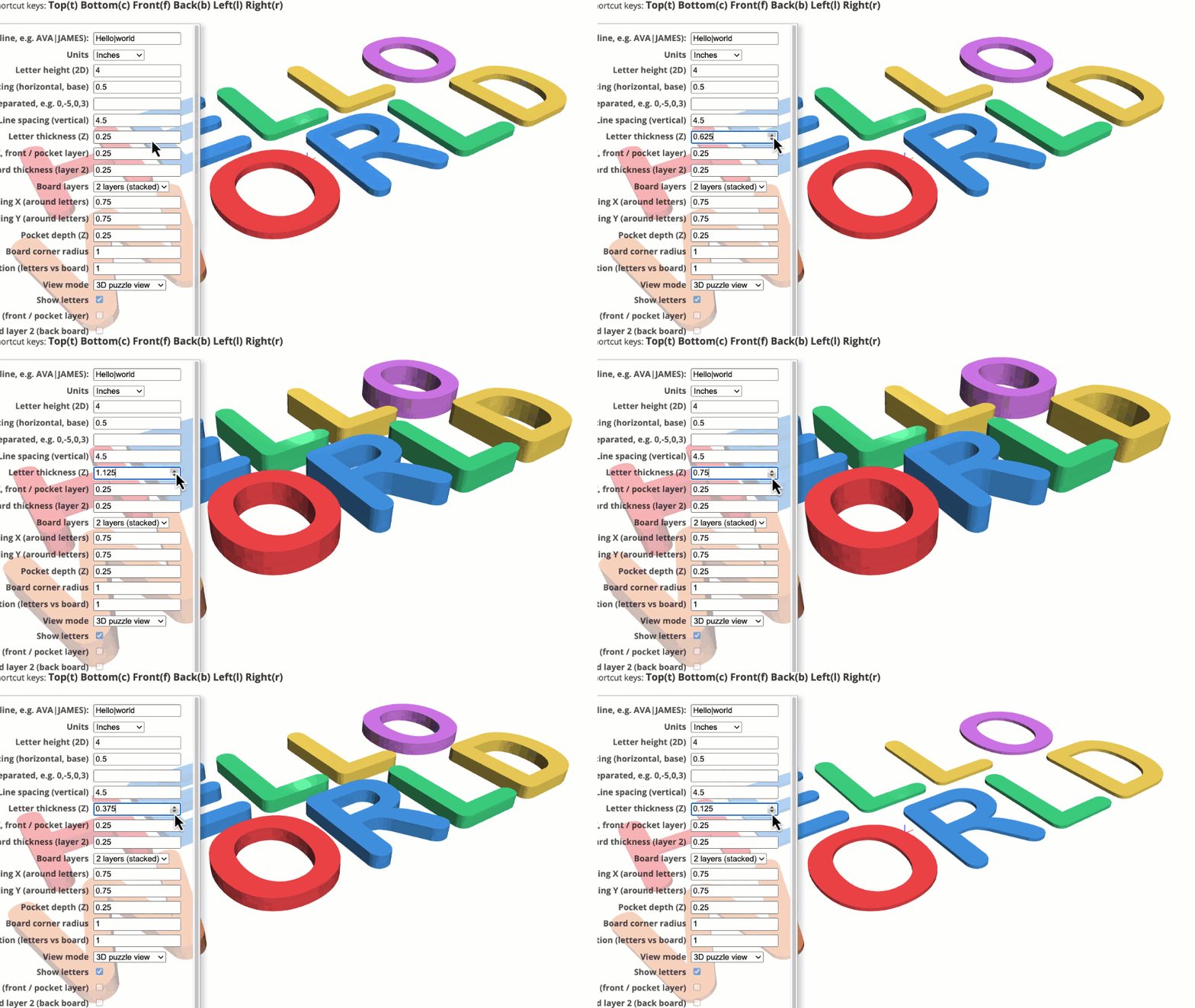
Thickness of the letters. Values are in UNITS scale (Inches or Millimeters)
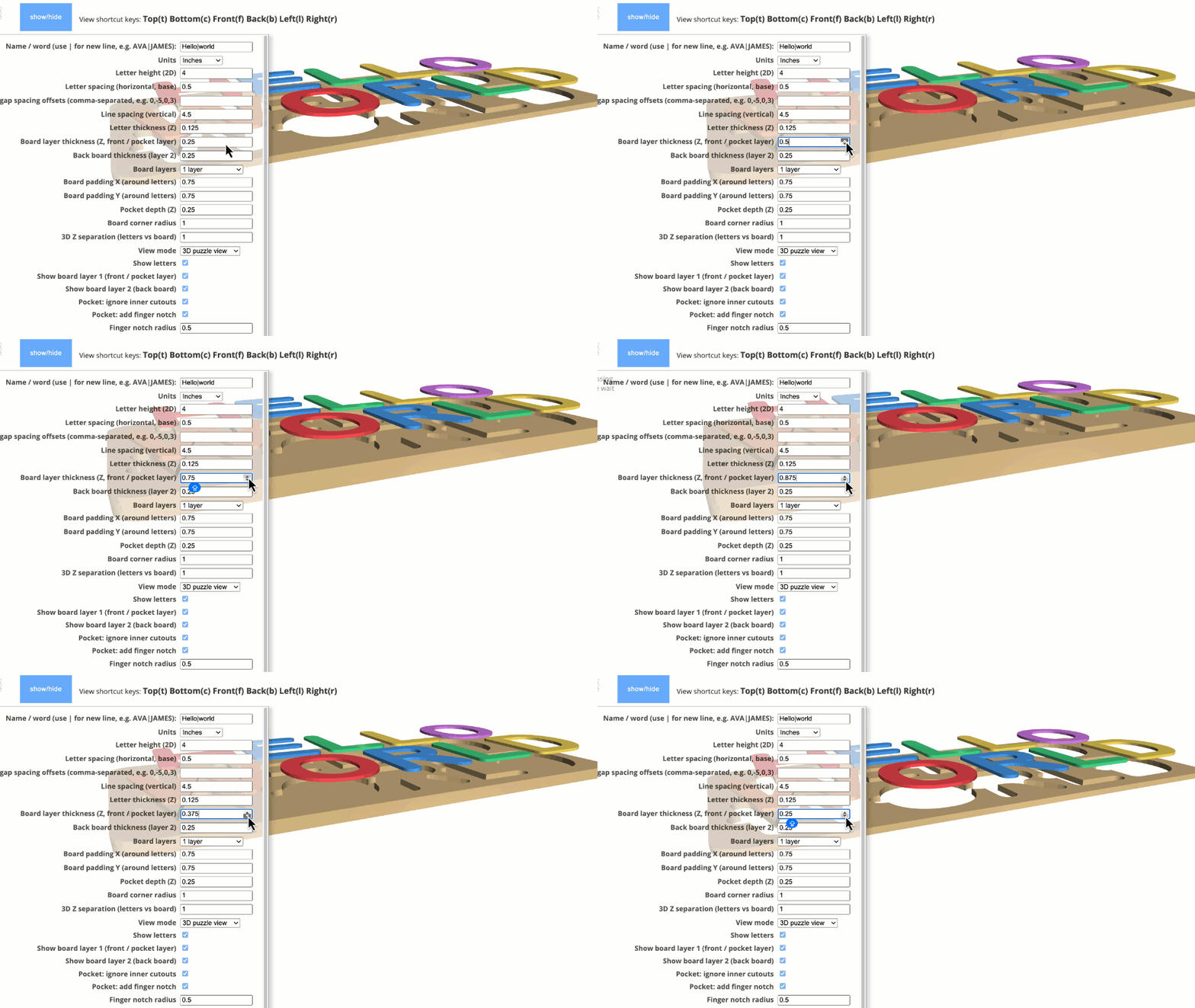
Board layer thickness (Z, front / pocket layer)
The thickness in units of the 1st layer board. Layer 1 board is the board which will contain the recessed or ‘pocketed’ areas for the letters. Values are in UNITS scale (Inches or Millimeters)
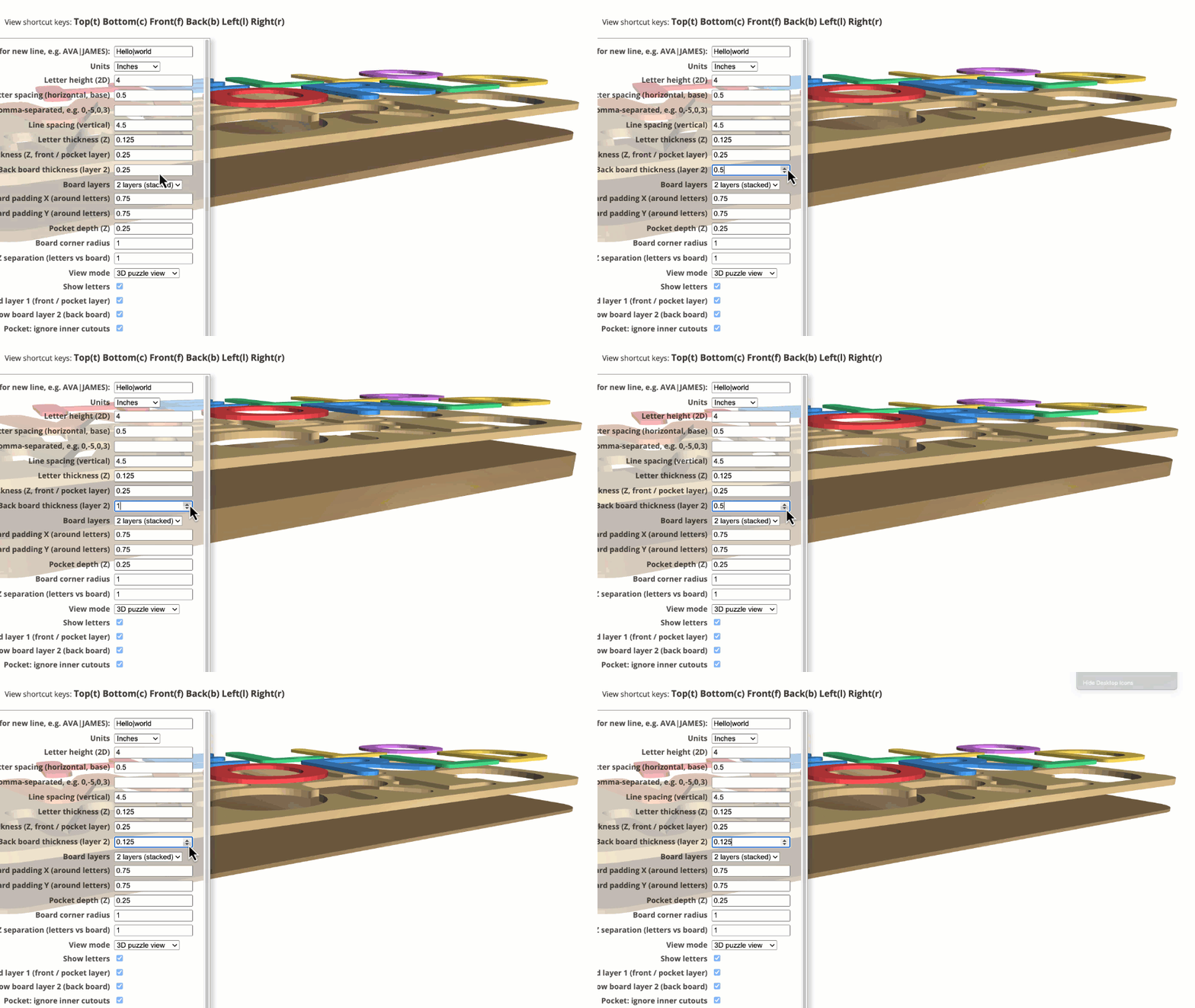
Back board thickness (layer 2)
The thickness of the 2nd layer board. Values are in UNITS scale (Inches or Millimeters)
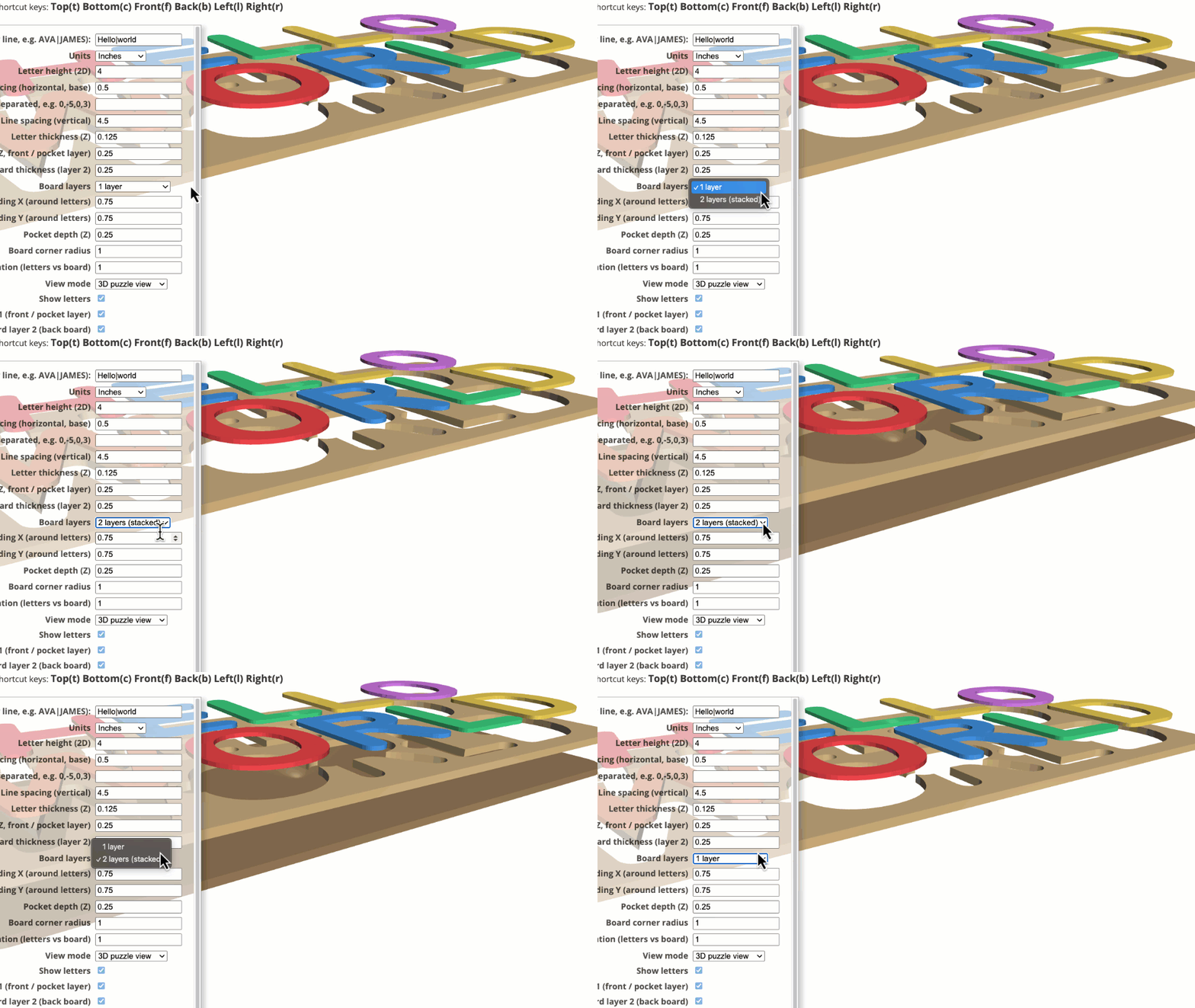
Board layers
Select 1 or 2 board layers. 2 will be typical for laser cutters. 1 layer will work for CNC and 3D printers.
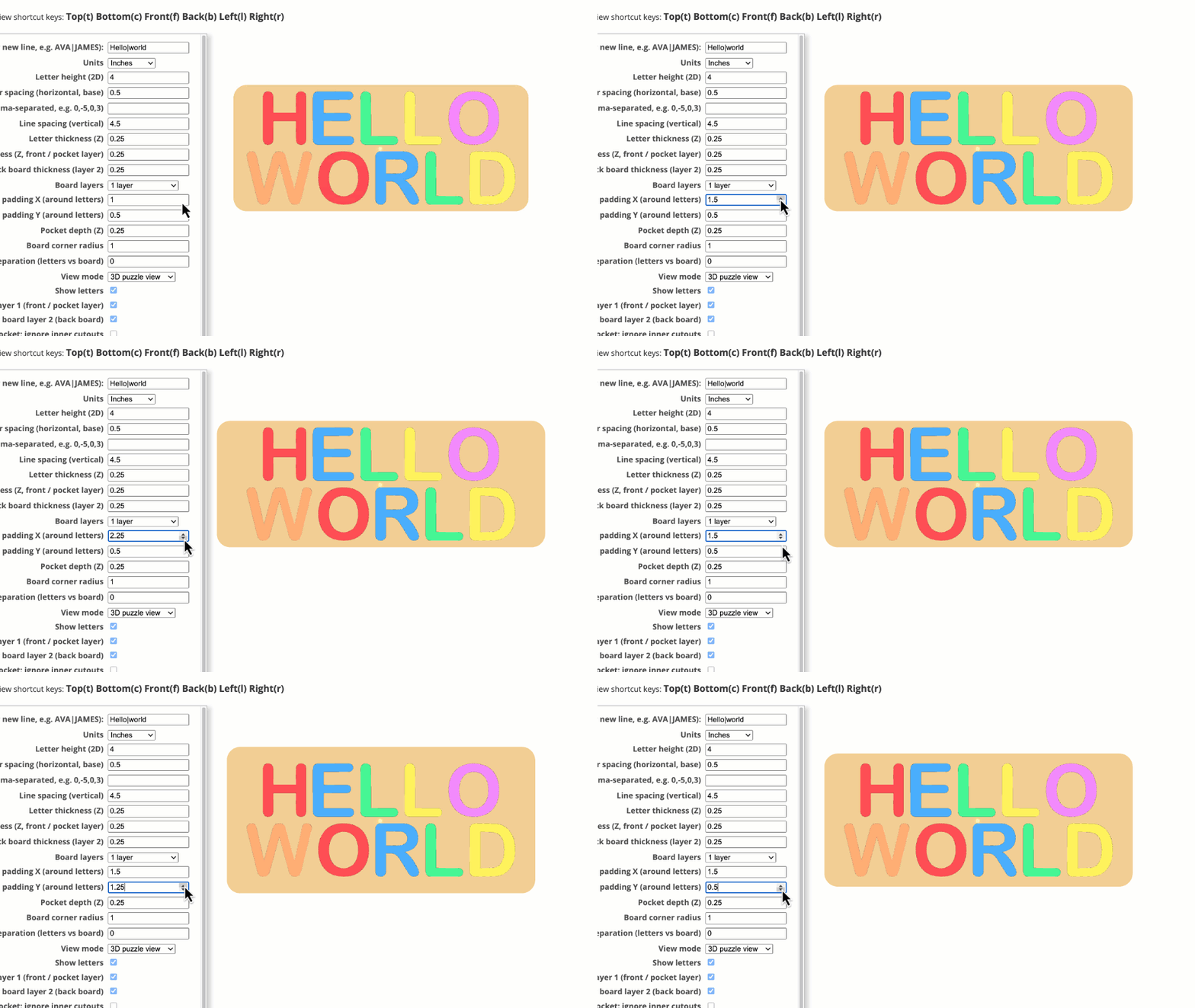
Board padding X and Y (around letters)
X/Y Padding between the outside edge of the board the letters. Values are in UNITS scale (Inches or Millimeters)
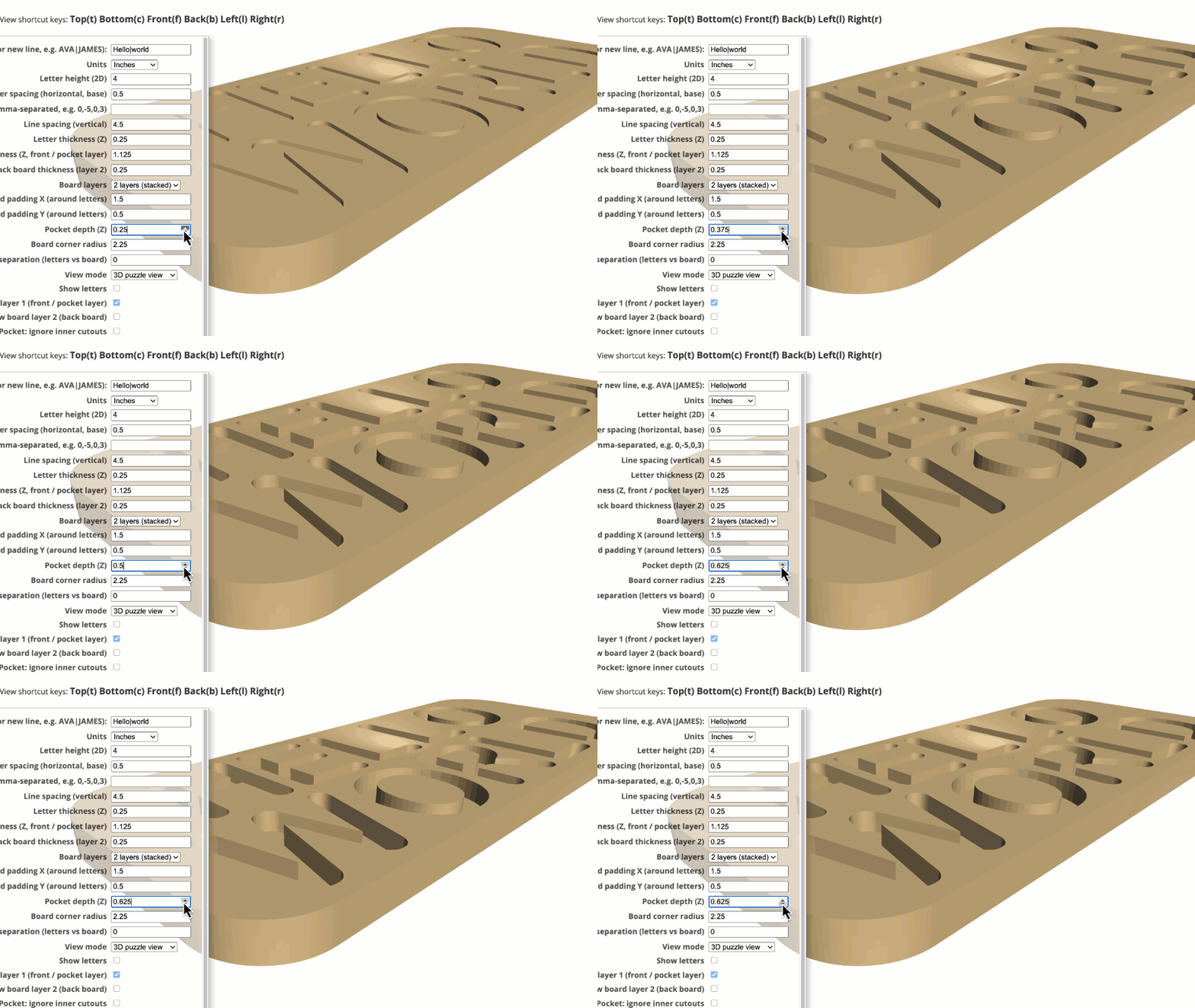
Pocket depth (Z)
How deep to make the letter ‘pockets’ in the layer 1 board. Values are in UNITS scale (Inches or Millimeters)
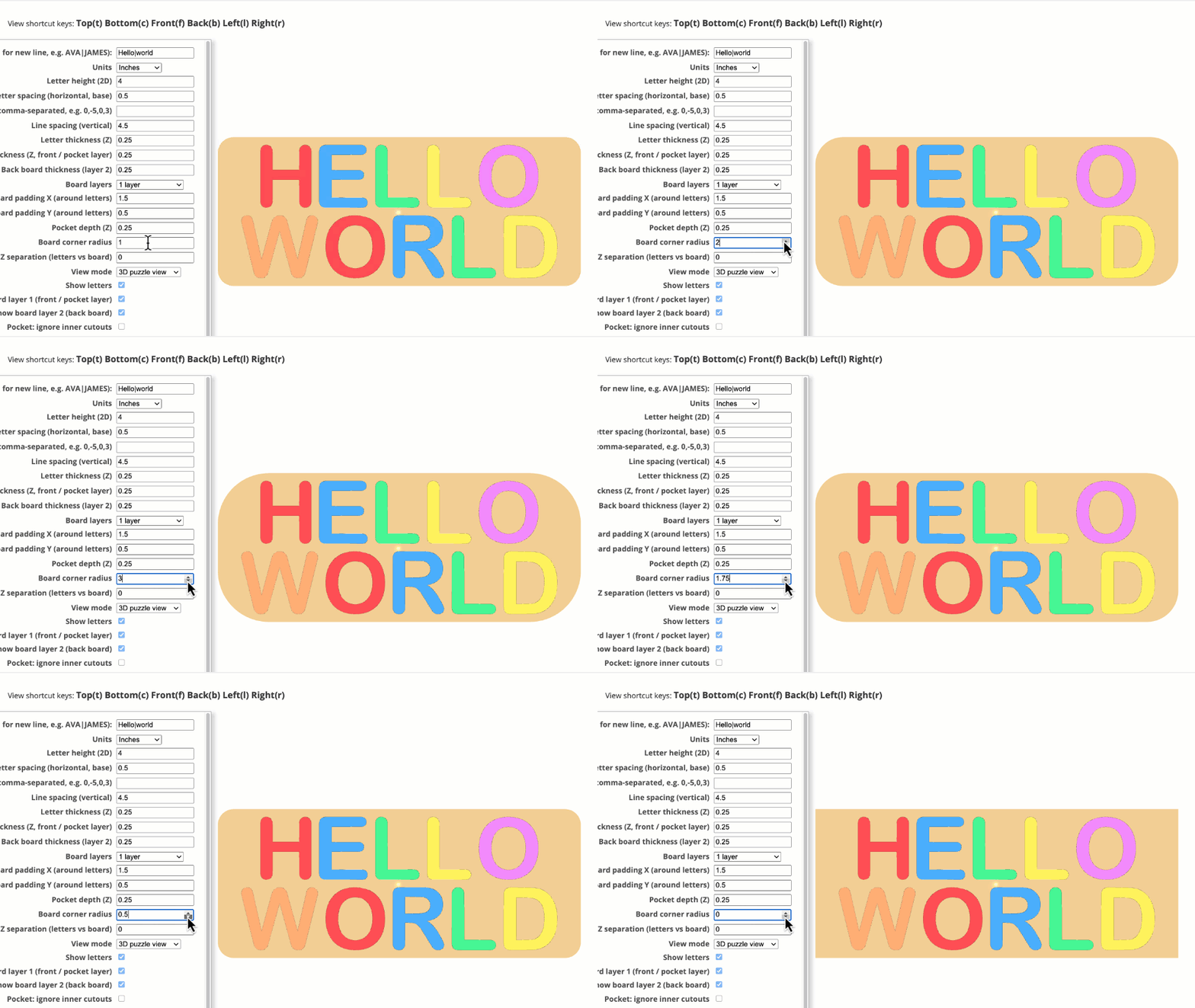
Board corner radius
Adjust the amount of corner roundness. Values are in UNITS scale (Inches or Millimeters)
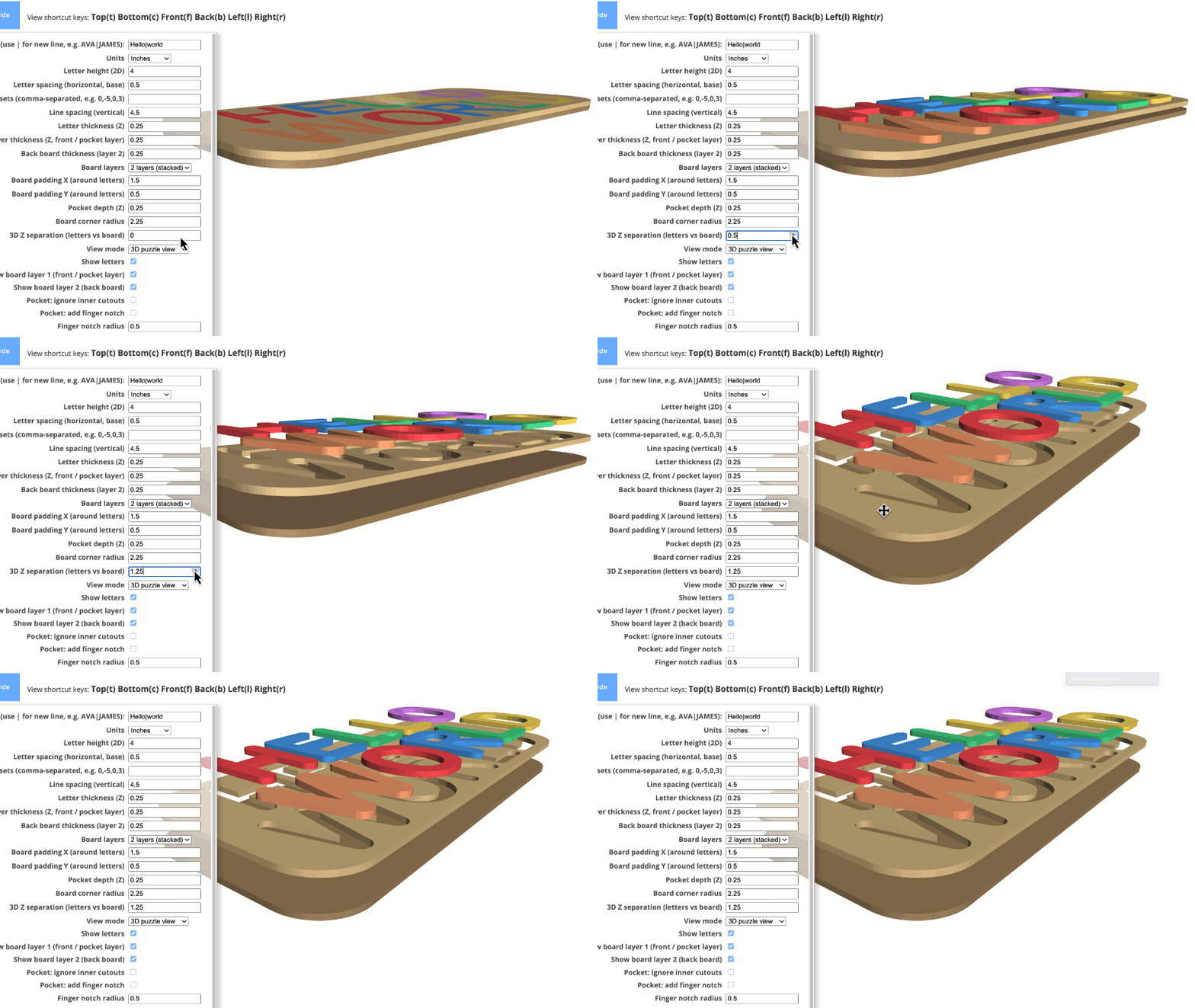
3D Z separation (letters vs board)
Used for presentation of the model providing better visibility of what the final. Values are in UNITS scale (Inches or Millimeters)
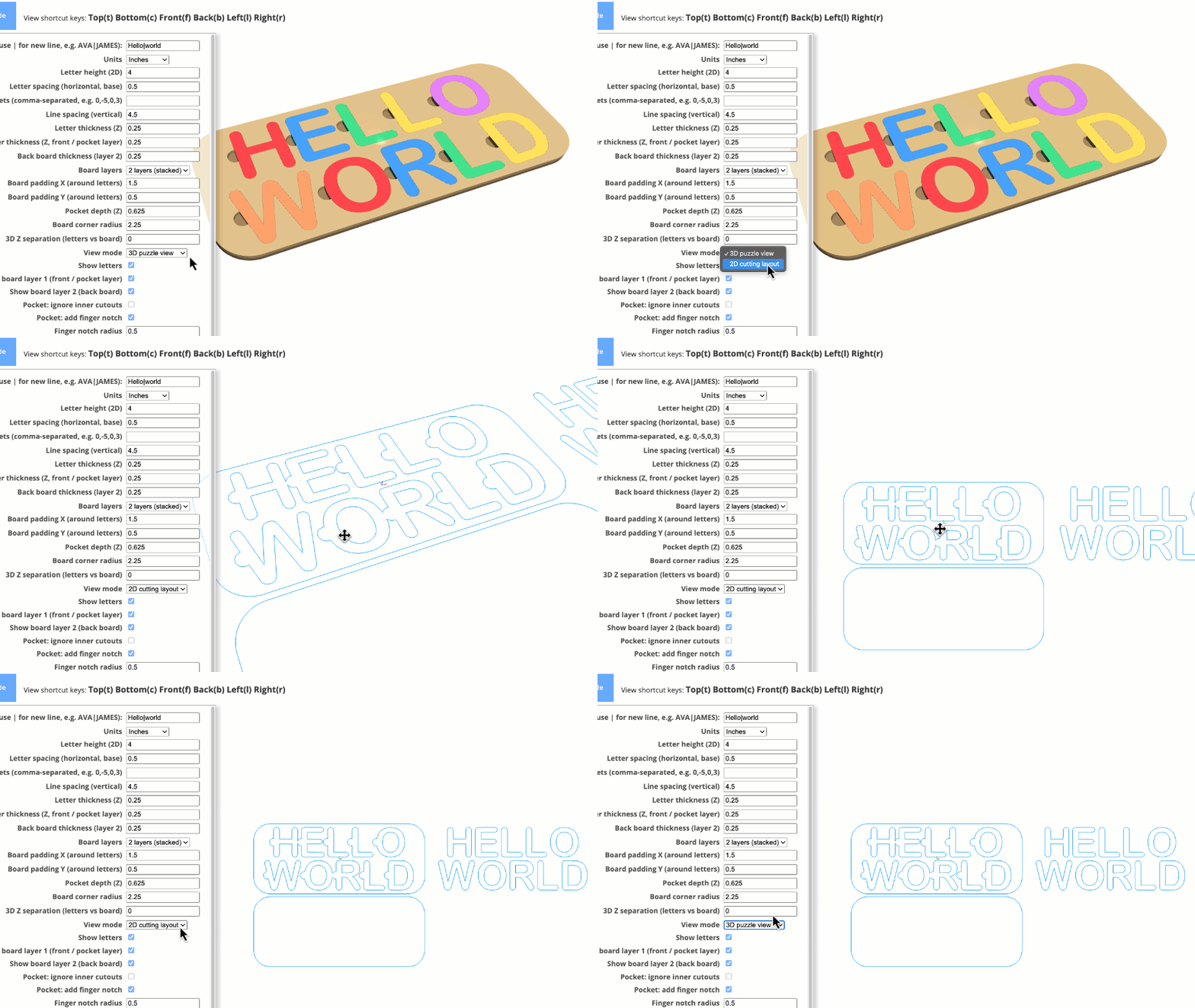
View mode
Here you can set 2D or 3D view.
In addition, there are individual SHOW/HIDE checkboxes used to control object visibility in the view port. This is helpful if you don’t want to output a certain object to an SVG or STL file.
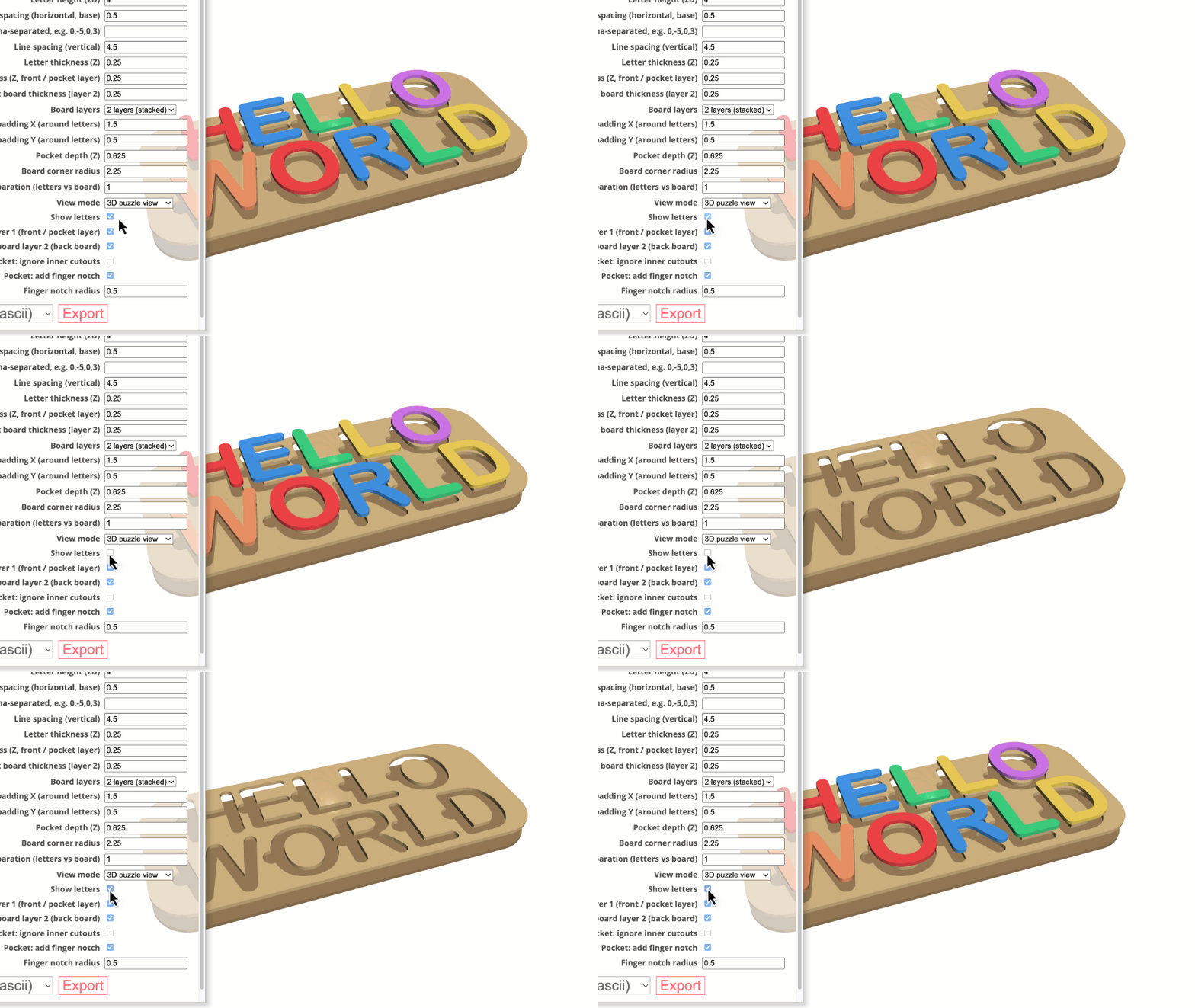
Show letters
Show/Hide the letters for better view of the individual 3D model components.
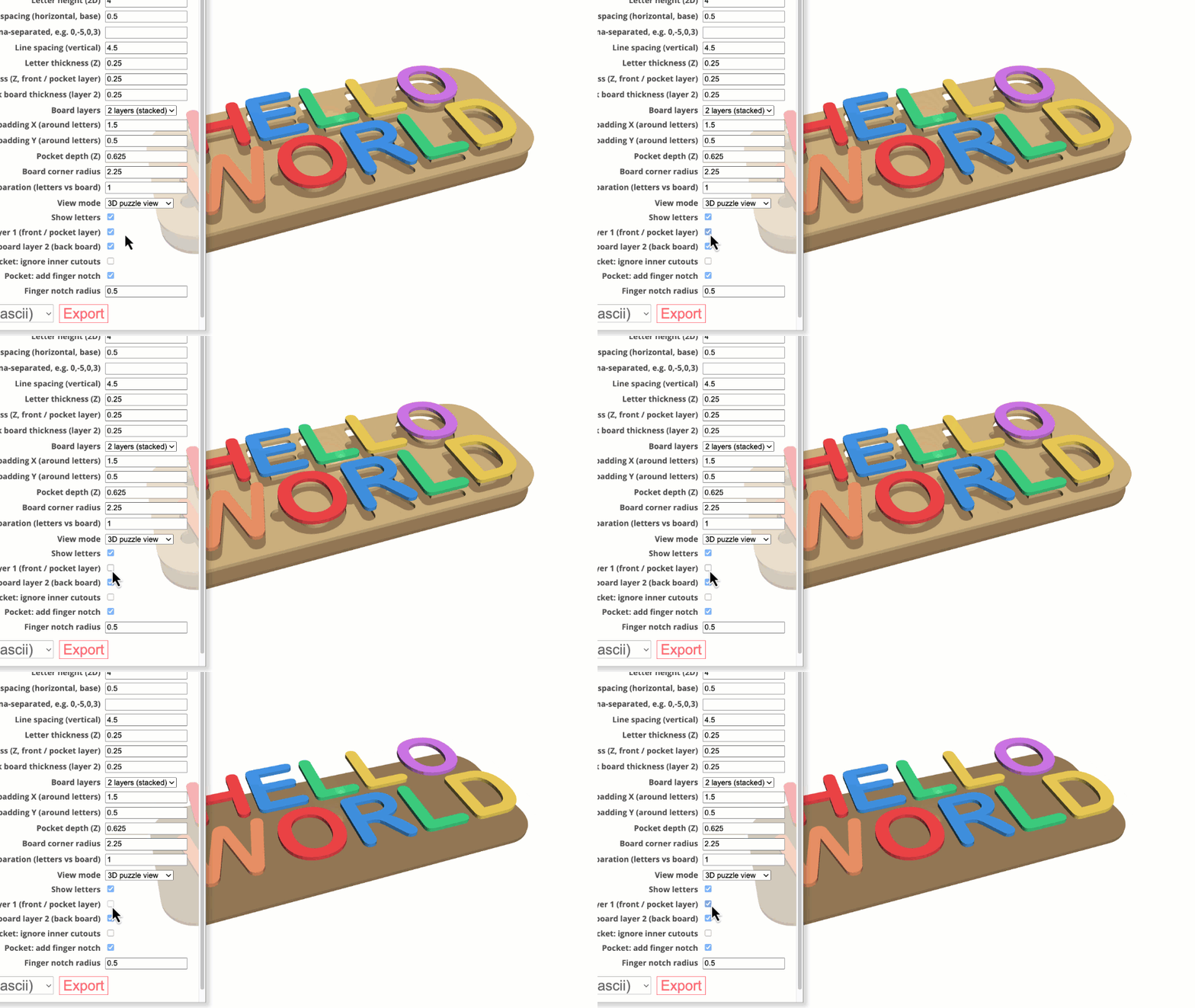
Show board layer 1 (front / pocket layer)
Show/Hide the layer 1 board for better view of the individual 3D model components.
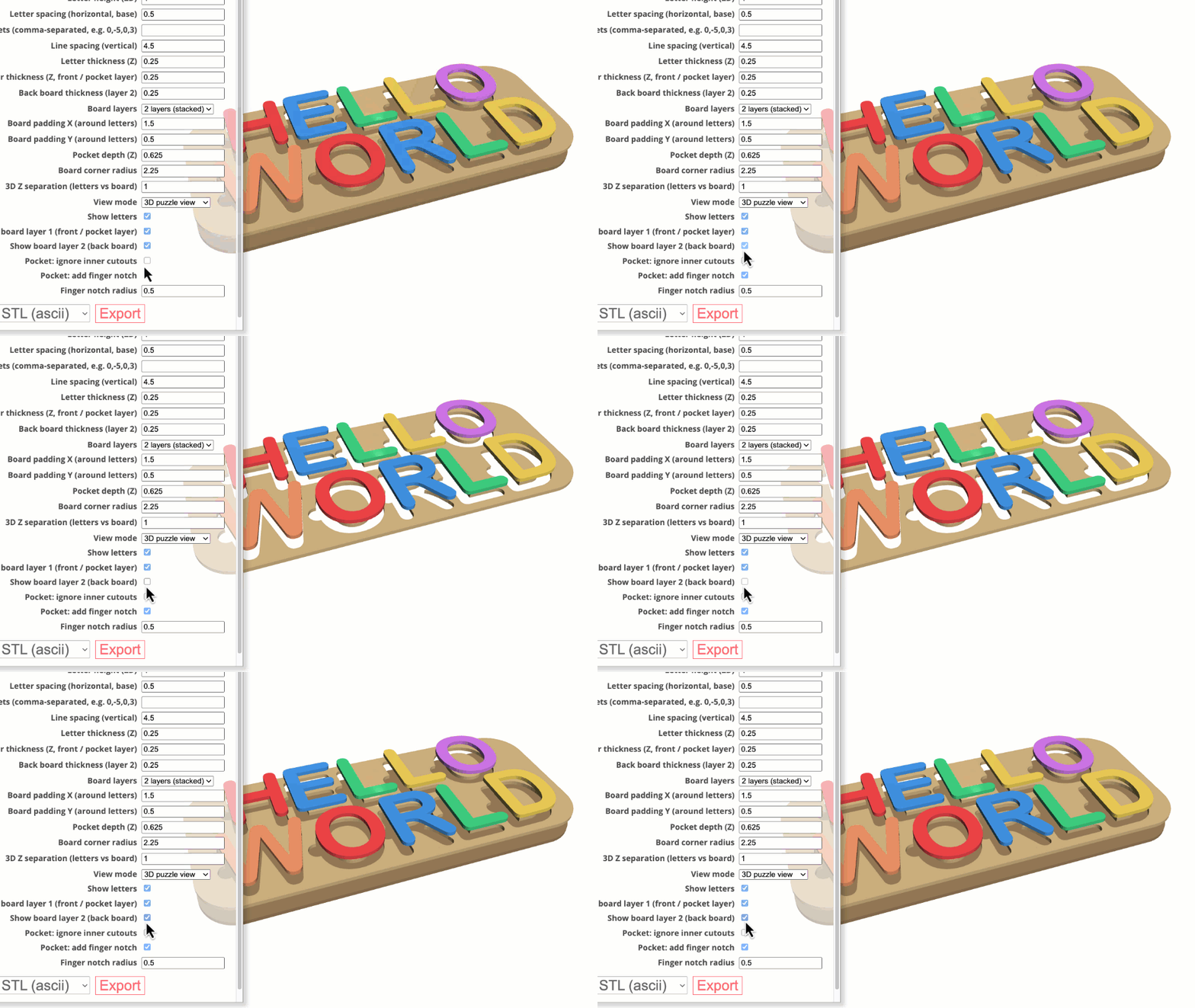
Show board layer 2 (back board)
Show/Hide the layer 2 board for better view of the individual 3D model components.
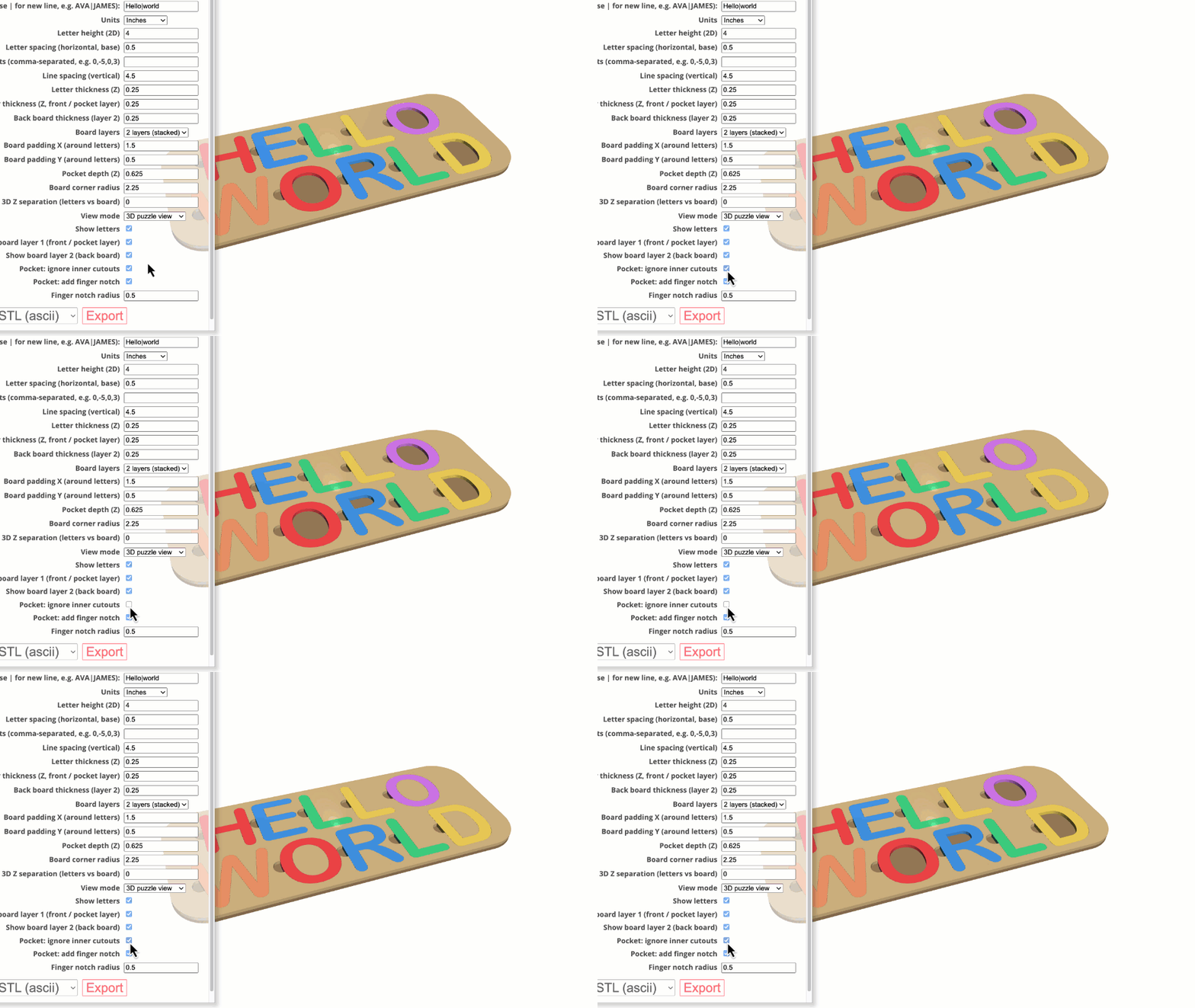
Pocket: ignore inner cutouts
The inner cutouts between letters such as O, D, B, etc. can optionally be removed. Removal of the inner cutouts will be needed for laser cutting, but can be left in place for a CNC or 3D printer.
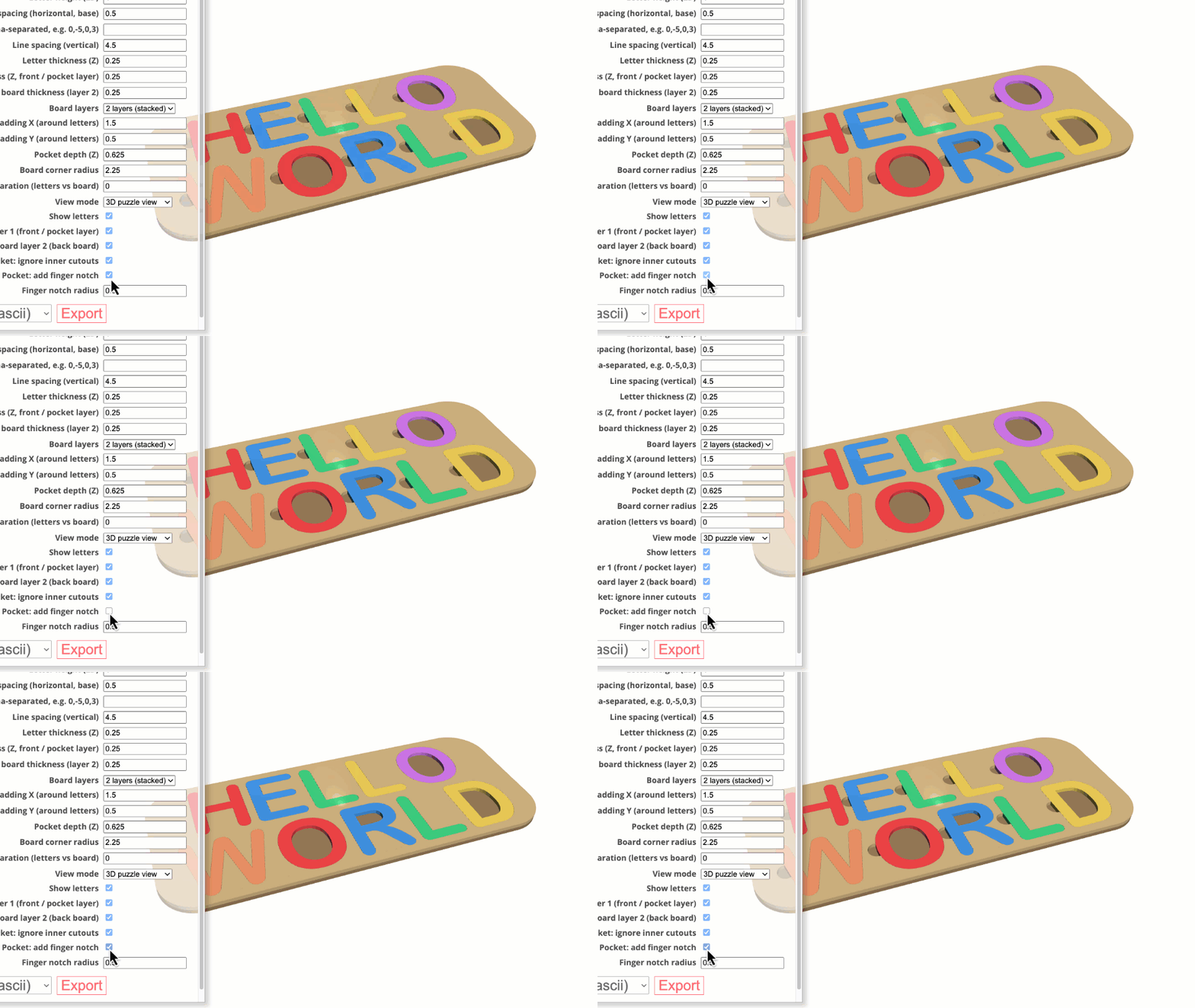
Pocket: add finger notch
Show/hide the finger notch. Finger notches are optional.
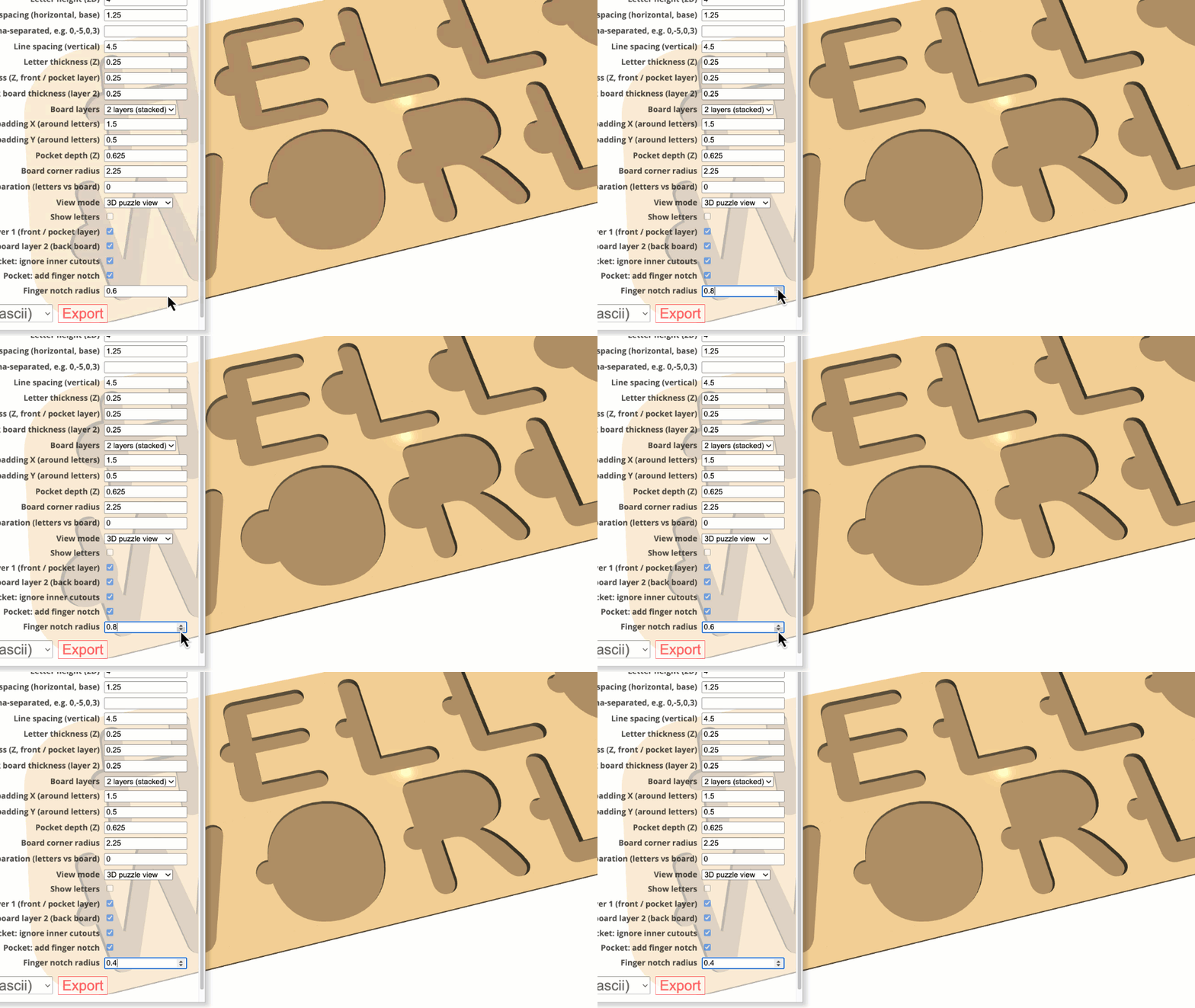
Finger notch radius
If finger notches are enabled, you can increase or decrease the size based on the letter size. Values are in UNITS scale (Inches or Millimeters)
VIEW/EXPORT
Here you can set 2D or 3D view.
In addition, there are individual SHOW/HIDE checkboxes used to control object visibility in the view port. This is helpful if you don’t want to output a certain object to an SVG or STL file.
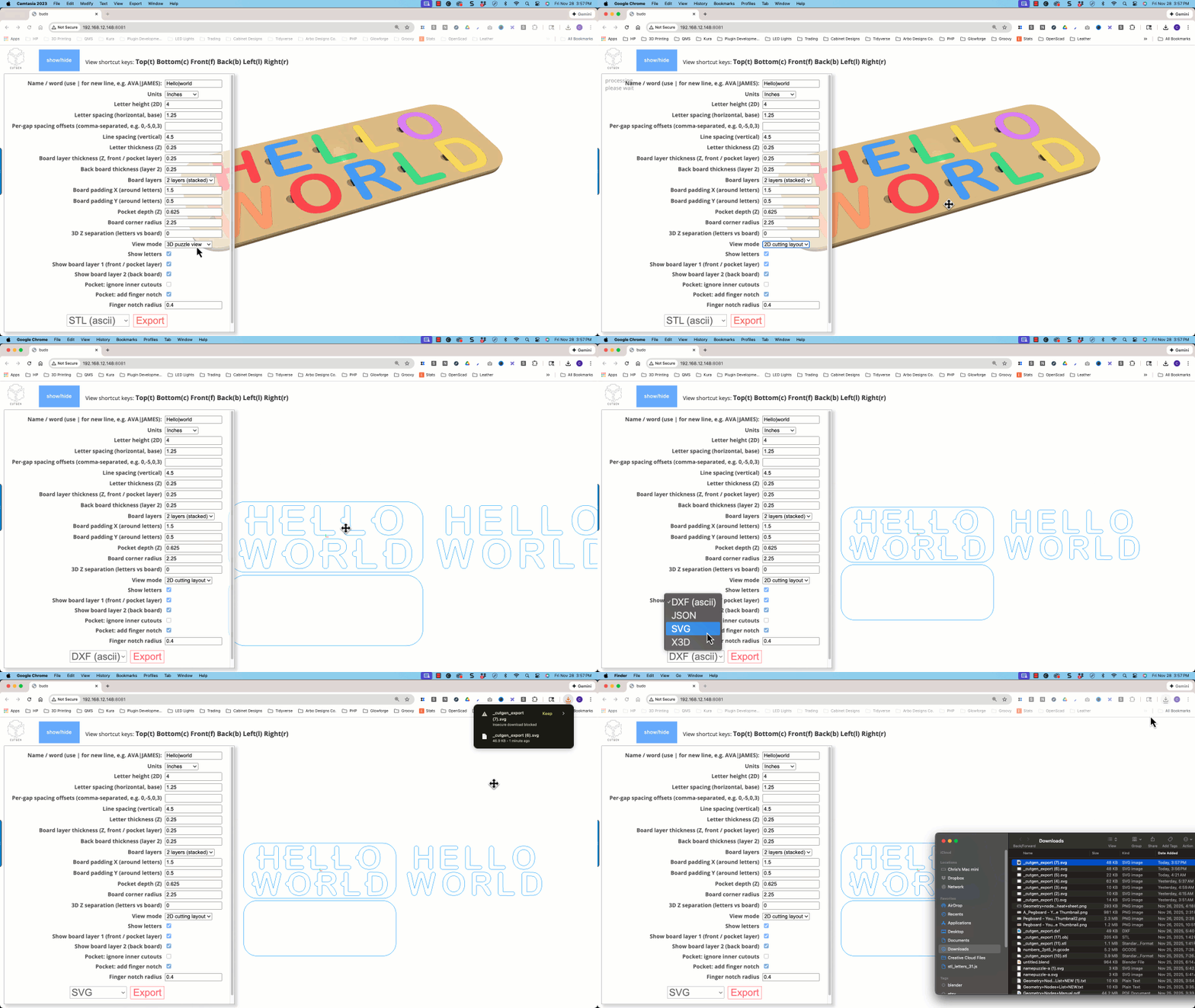
EXPORT 2D Flat Layout to SVG
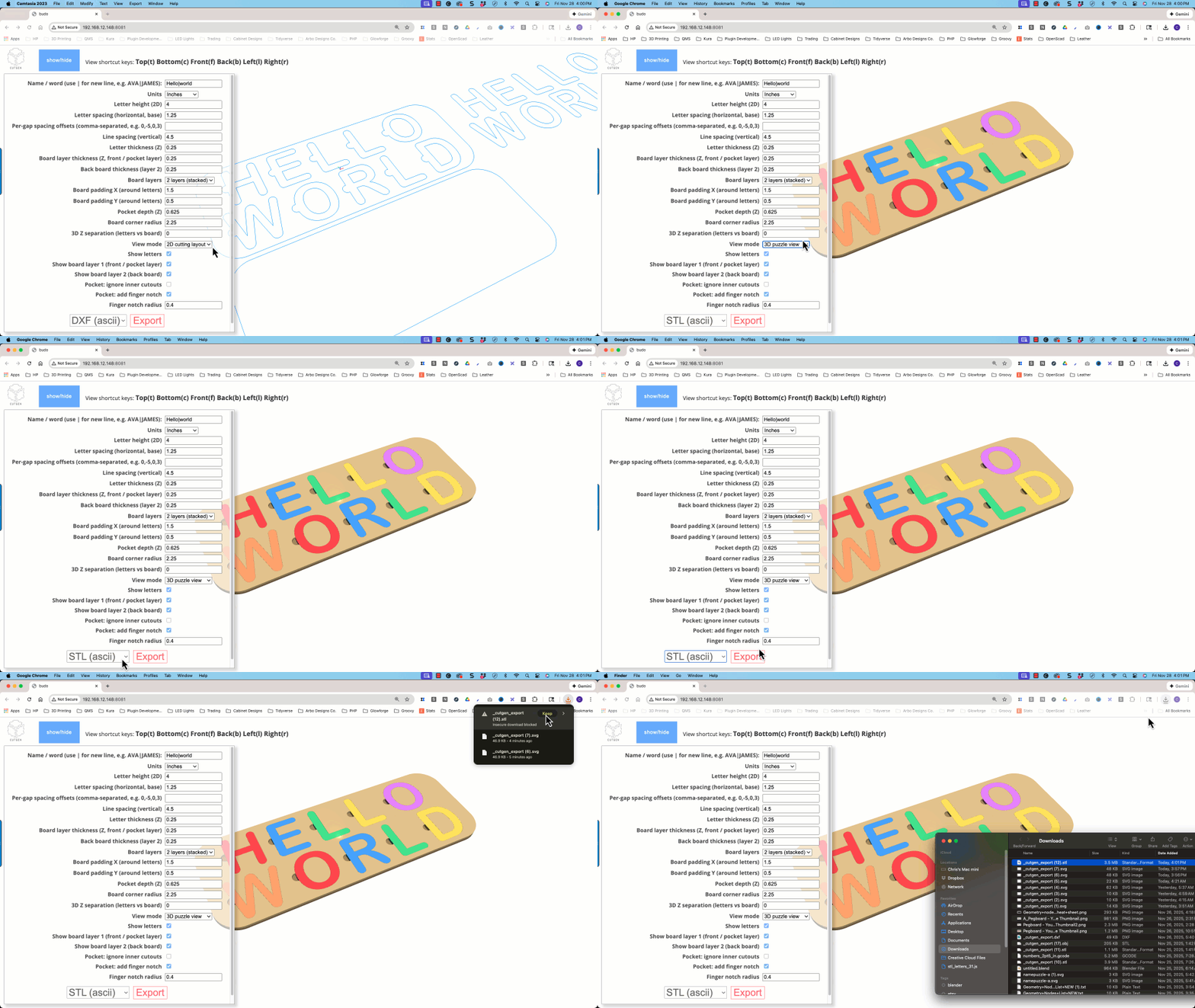
EXPORT 3D to STL
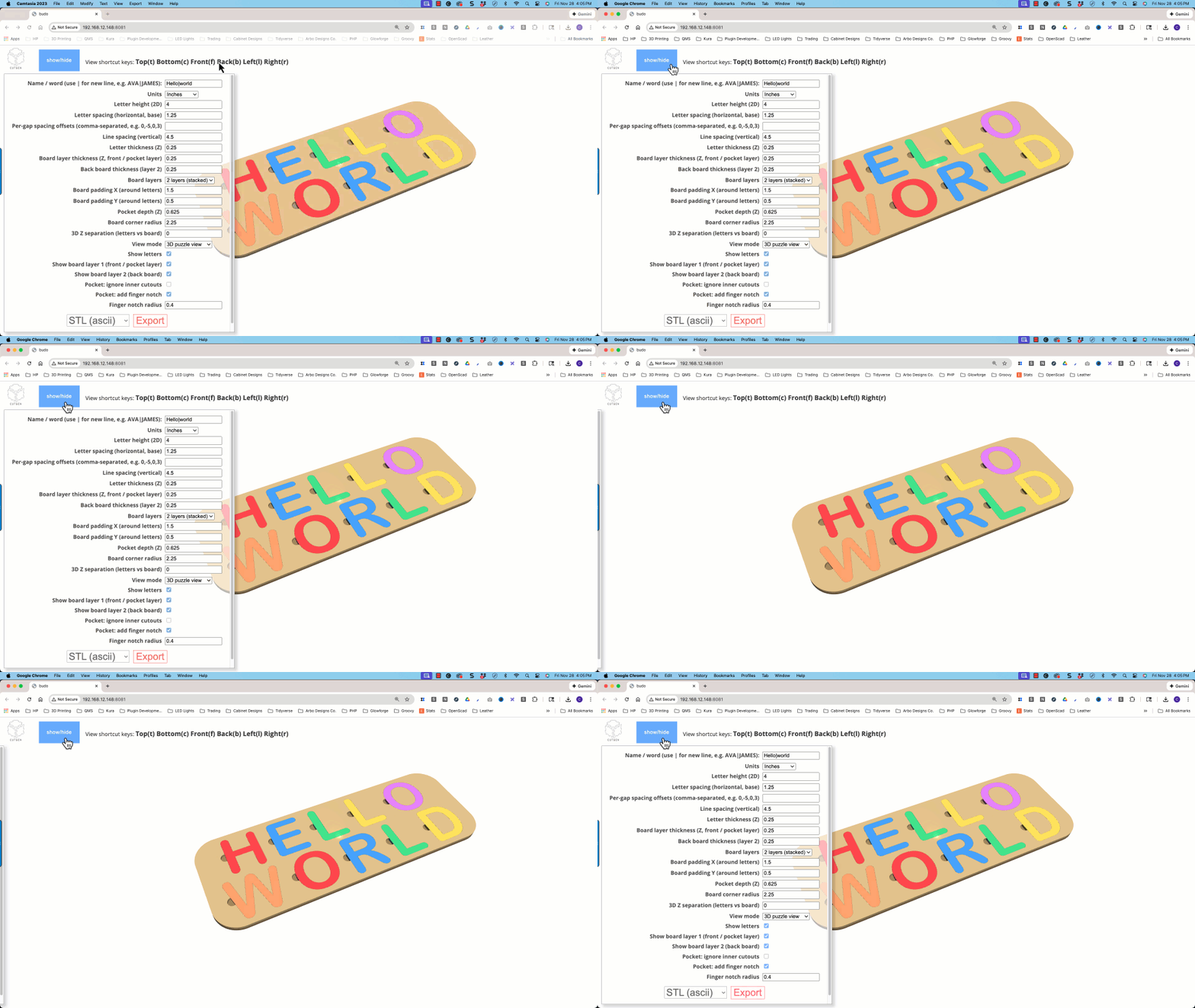
Show/Hide Side Navigation
Board Dimensions (Console Window Output)
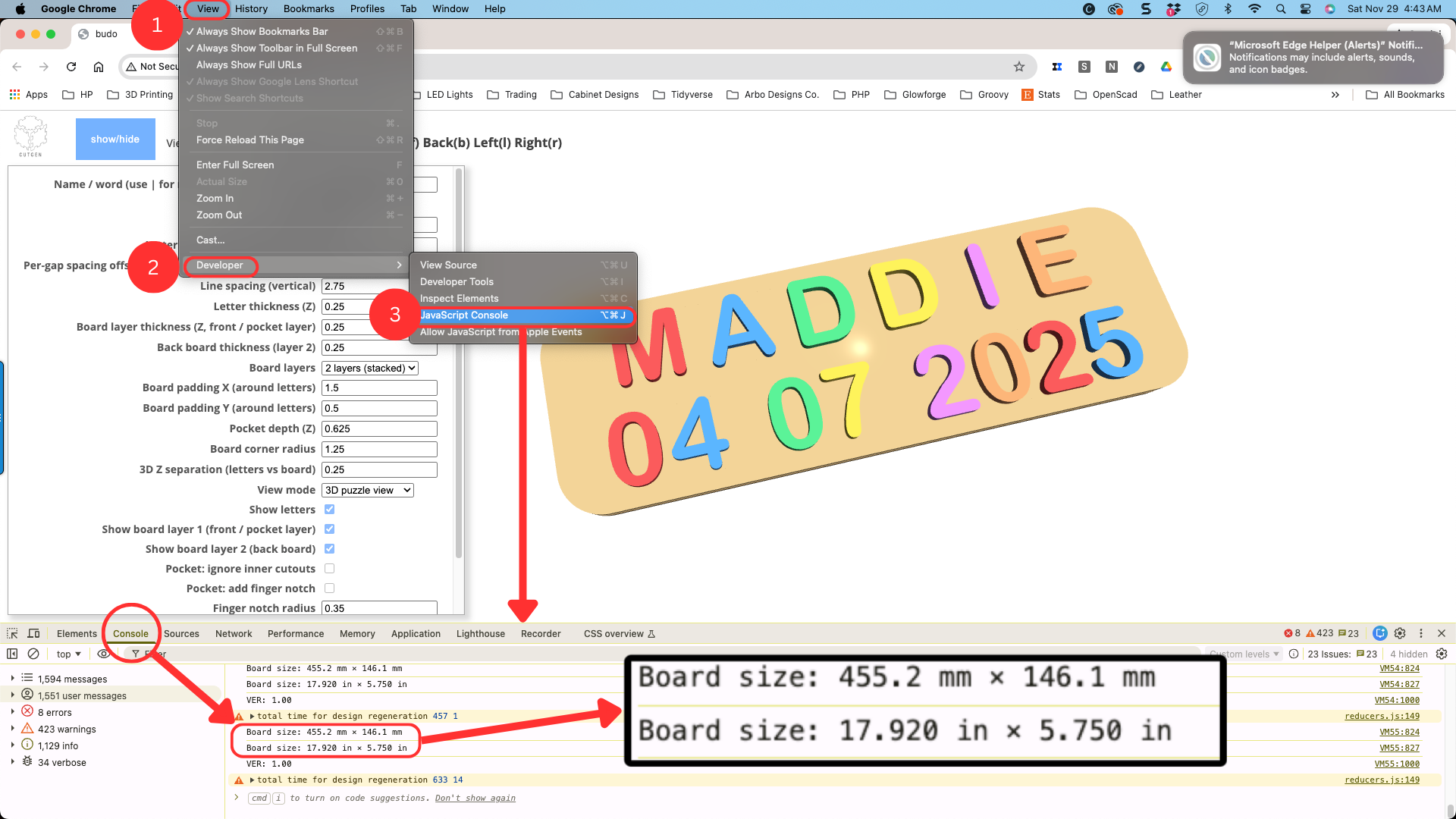
After setting your final custom parameters, you can find the final board dimensions printed in the web browser’s ‘console’ window. How to access the console window depends on the browser type.
Chrome and Edge browsers
Using the main menu located at the top of the screen.
Click on ‘View’
Click on ‘Developer’
Click on ‘JavaScript Console’.
Board size in MM and IN will be displayed.
Firefox browser
Using the main menu located at the top of the screen.
Click on ‘Tools’
Click on ‘Browser Tools’
Click on ‘Browser Console’.
Board size in MM and IN will be displayed.
Safari browser
Using the main menu located at the top of the screen.
Click on ‘Develop’
Click on ‘Show JavaScript console’
Board size in MM and IN will be displayed.
Shortcut ‘View’ keys
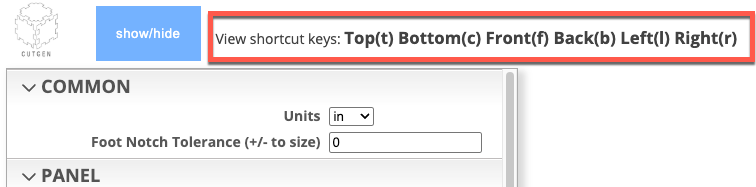
To enhance viewing and navigation of 3D and 2D objects, six shortcut keys are available.
3D - Keyboard Shortcuts
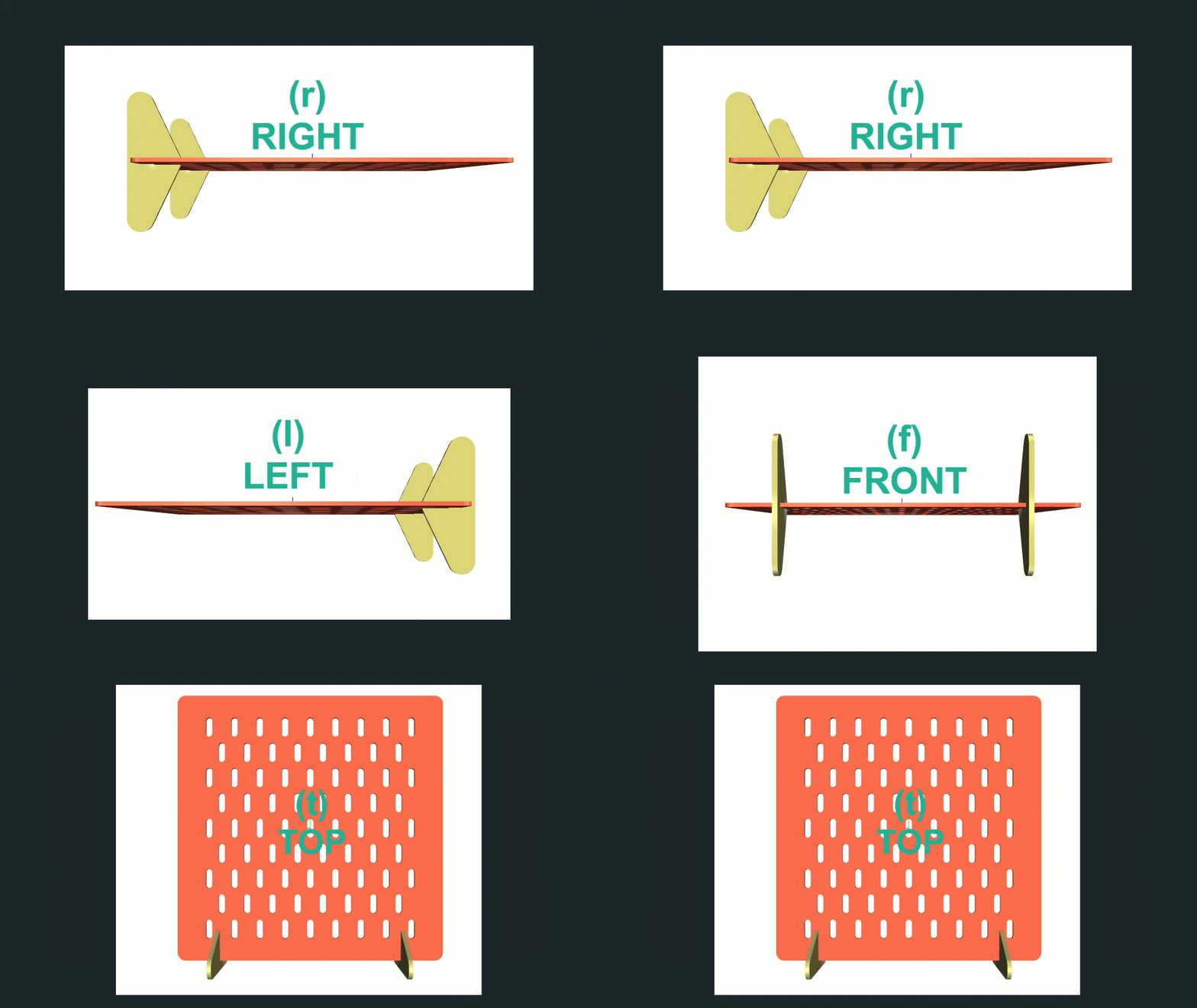
Quick view keyboard shortcuts are provide. The view perspective is if you laid the panel down onto a flat surface and you are looking down at it.
Mouse Navigation
Pan (Move)
To pan or move a 2D or 3D model on the screen, press and hold the ‘SHIFT’ key, while at the same time hold down any mouse button (left, right, or scroll wheel). Drag the mouse to move the model around the 2D/3D space.
Orbit (rotate)
To rotate a 2D or 3D model on the screen, press and HOLD down any of the mouse buttons while dragging/moving the mouse.
Zoom
To zoom in or out within the 2D or 3D space, scroll the mouse wheel forward or backward.

Procedures
Export to SVG file
SVG is a native format for laser and CNC cutting machines. To export to an SVG file, follow these steps:
- Select ‘2D cutting layout’ from the ‘View mode’ dropdown.
- Press the ‘t’ key to display a top down view of the 2D layout.
- Select ‘SVG’ from the file type select dropdown box.
- Press the ‘Export’ button.
- Output SVG will be save in the ‘Downloads’ folder.
Export to STL file
STL is a native format for 3D printing machines. To export to an STL file, follow these steps:
Select ‘3D puzzle view’ from the ‘View mode’ dropdown.
Select ‘STL (ascii)’ or ‘STL (binary)’ from the file type select dropdown box.
Press the ‘Export’ button.
Output STL will be save in the ‘Downloads’ folder.
OBJ File Export for use in Blender
OBJ file format works much better in Blender than STL.
- select ‘3D puzzle view’ from the ‘View’ dropdown.
- Select ‘OBJ’ from the file type select dropdown box.
- Press the ‘Export’ button.
- Output OBJ will be save in the ‘Downloads’ folder.